Shared foundation
Everything in this part is required whether you deploy the ATS, the HRIS, or both. It establishes a single Integration System User, a single Security Group, and a single OAuth API Client that both integrations will use.
1.1 Integration System User
Run the Create Integration System User task.
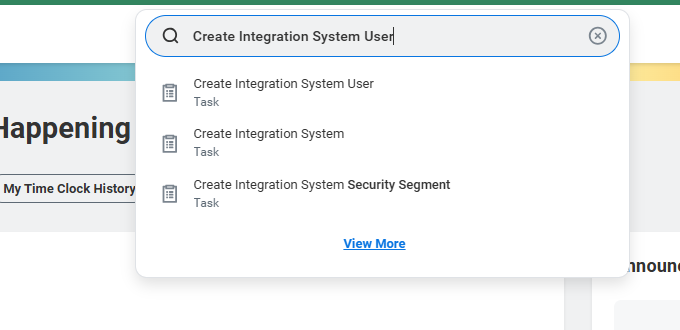
Search for Create Integration System User in the Workday search bar.
Configure the user with these values:
| Field | Value |
|---|---|
| User Name | DeeperSignals_User |
| New Password | A strong password, recorded in your secret store. |
| Session Timeout Minutes | 0 (do not expire). An expired session can cause the integration to stop mid-run. |
| Do Not Allow UI Sessions | Checked. The ISU must not be able to sign in to the Workday UI. |
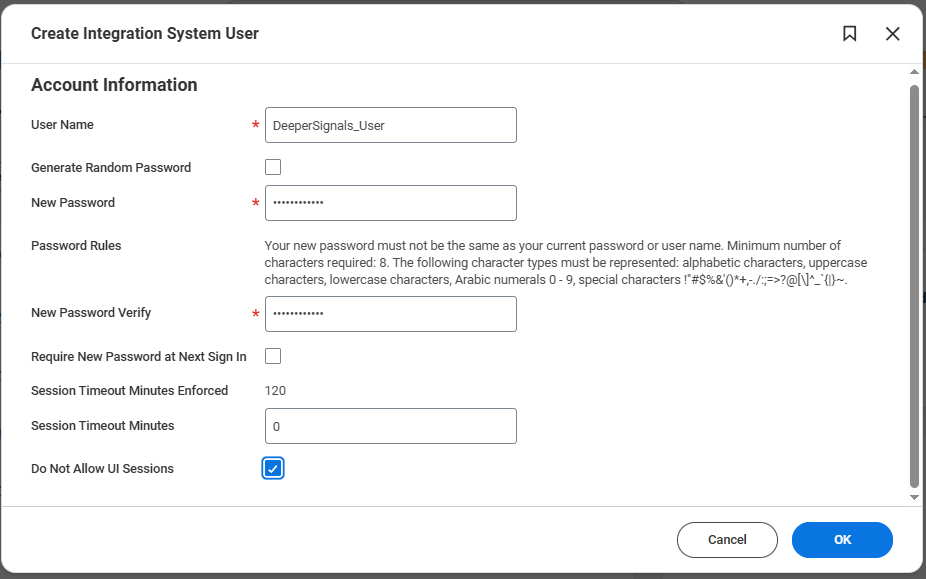
The completed Create Integration System User form.
1.2 Integration System Security Group
Run the Create Security Group task. Choose Integration System Security Group (Constrained) and name it DeeperSignals_SG.
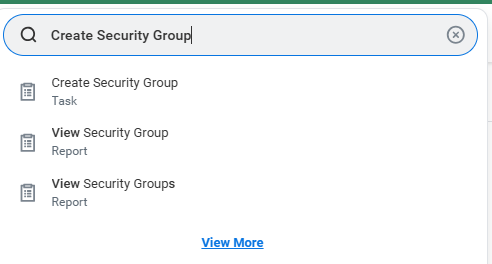
Search for Create Security Group.
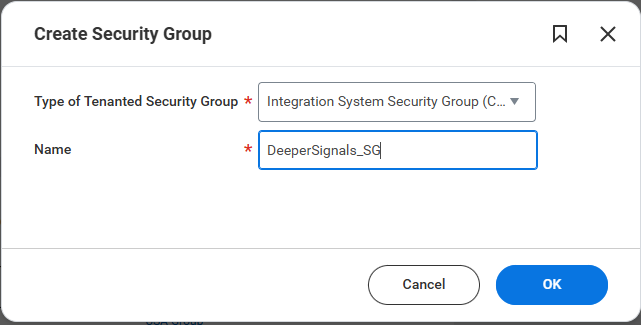
Type = Integration System Security Group (Constrained); Name = DeeperSignals_SG.
On the next screen, add DeeperSignals_User as an Integration System User, add the top-level Organization that Deeper Signals should have visibility over, and set Access Rights to Organizations to Applies to Current Organization And All Subordinates.
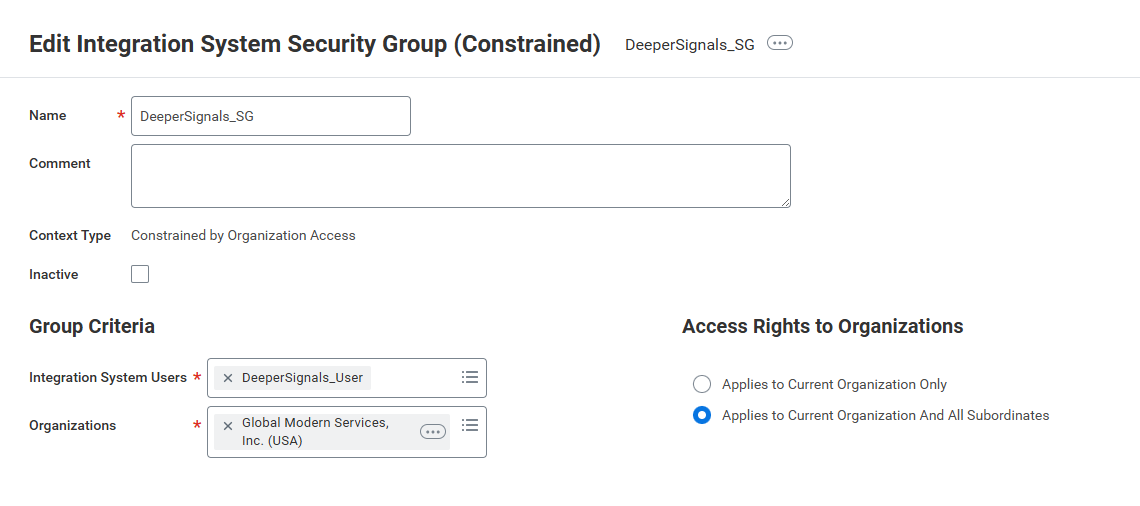
Constrained group with the ISU as a member and access scoped to the chosen organisation and all its subordinates.
1.3 Domain Security Policies
Find the DeeperSignals_SG security group (use All of Workday in the Search categories if it doesn't appear immediately). On the three-dot Related Actions menu, choose Security Group → Maintain Domain Permissions for Security Group.
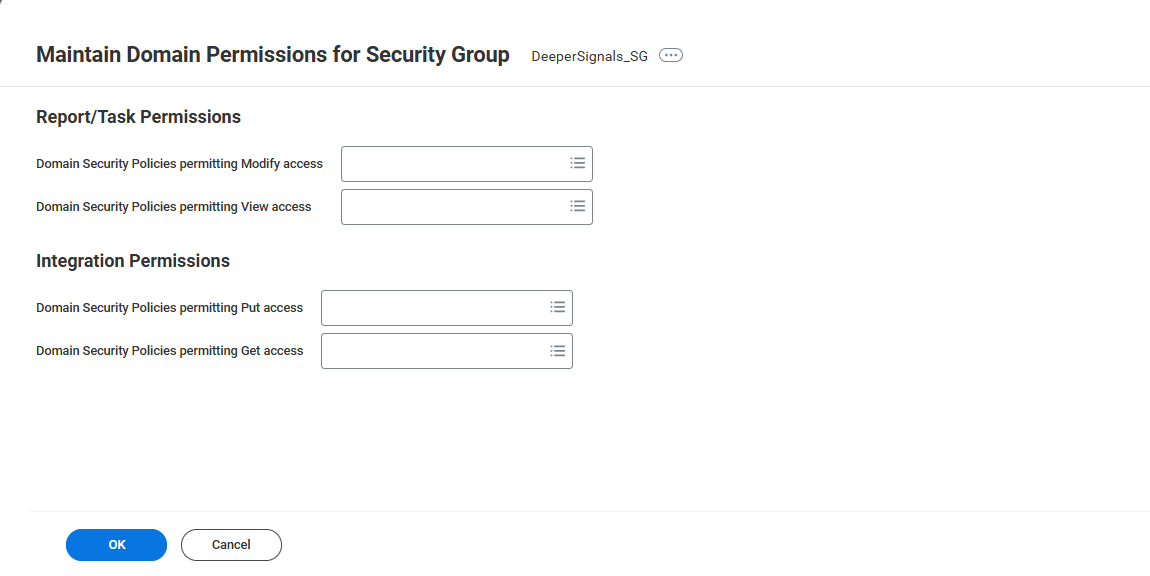
The Maintain Domain Permissions for Security Group task — add each policy in the table that follows.
Add the rows below to the security group. The first table is the minimum set required by every deployment. The second table lists the additional rows needed only if you deploy the HRIS surface — including the worker and supervisory-organisation domains, which an ATS-only deployment does not require.
:::info Deploying ATS only?
If you are deploying the ATS surface without HRIS, add only the rows in §1.3.1. Every worker-data and organisation domain lives in §1.3.2, because the code paths that read worker or organisation data are gated on an HRIS integration being configured and never execute in an ATS-only deployment. This keeps the integration's access confined to the Recruiting candidate record. :::
1.3.1 Required for every deployment ATS HRIS
| Operation | Domain Security Policy | Inheriting Sub-Policies | Functional Area |
|---|---|---|---|
| Get and Put | Custom Domain 1 | — | System |
| Get and Put | Candidate Data: Attachments | — | Recruiting |
| Get and Put | Candidate Data: Assessment Results | — | Recruiting |
| Get and Put | Move Candidate | — | Recruiting |
| Get and Put | Candidate Data: Edit Job Application | — | Recruiting |
| Get and Put | Candidate Data: Job Application | Candidate Data: Mass Actions (Do Not Use); Candidate Data: Stock Grant Offer | Recruiting |
| Get Only | Candidate Data: Job Application | — | Recruiting |
| Get and Put | Manage: Candidate Job Application Notes | — | Recruiting |
| Get Only | Person Data: Work Contact Information | Person Data: Work Instant Messenger; Person Data: Work Web Address | Contact Information |
The Candidate Data: Job Application Get-Only row needs to be added explicitly under Domain Security Policies Permitting Get Access:
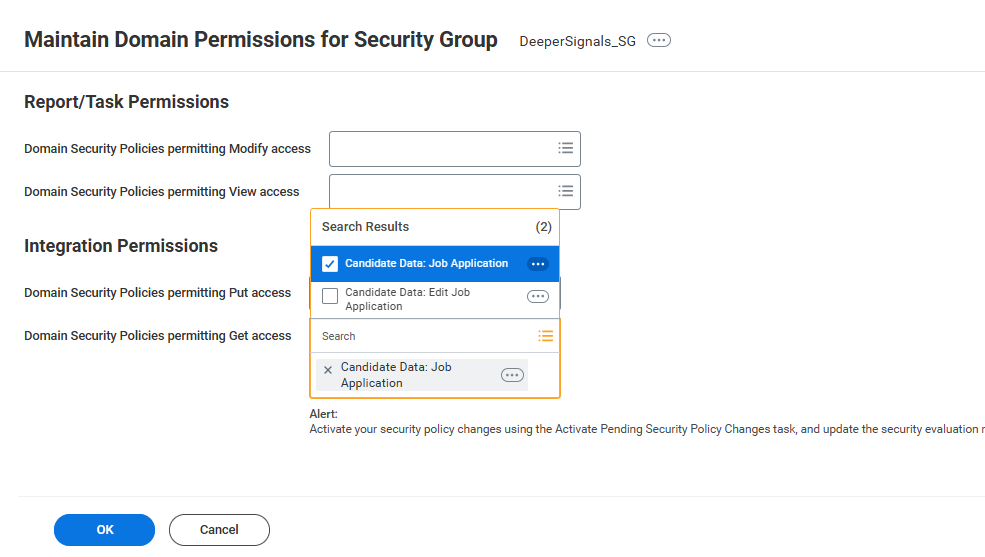
Add the Get-Only entry for Candidate Data: Job Application.
Once all rows are added, the configuration should look similar to:
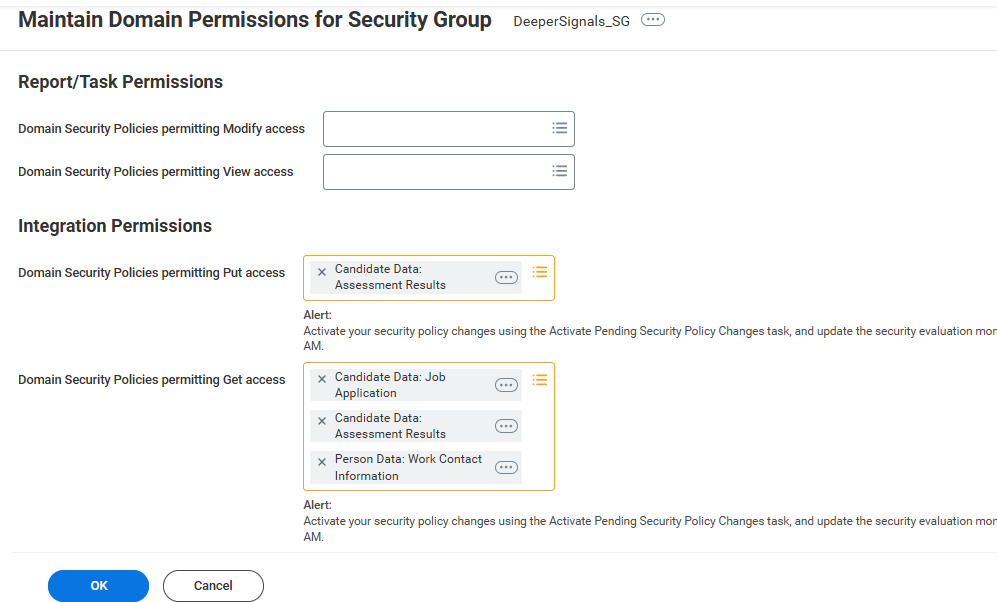
Final domain permissions on DeeperSignals_SG. This screenshot is from a combined ATS + HRIS tenant, so it also shows the §1.3.2 rows; an ATS-only group will be shorter.
1.3.2 Additional rows required for HRIS HRIS
If you deploy the HRIS surface (Part 3), add these rows on top of the table above. They give the integration the data it needs to read the entire workforce, resolve recruiters and hiring managers, and write back assessment PDFs to the worker.
Do not add these rows for an ATS-only deployment. Every one of them backs a code path that first checks whether an HRIS integration is configured; without that configuration the calls are never made, so the grants would be unused standing access.
| Operation | Domain Security Policy | Functional Area |
|---|---|---|
| Get Only | Worker Data: Public Worker Reports | Staffing |
| Get Only | Worker Position: View | Staffing |
| Get Only | Manage: Supervisory Organization Unconstrained | Recruiting |
| Get Only | Worker Data: Current Staffing Information | Staffing |
| Get Only | Worker Data: Current Management Level Information | Staffing |
| Get Only | Worker Data: All Positions | Staffing |
| Get Only | Worker Data: Historical Staffing Information | Staffing |
| Get and Put | Worker Data: Add Worker Documents | Personal Data |
| Get Only | Worker Data: Management Chain | Staffing |
:::warning Important — unconstrained access (HRIS deployments)
The Manage: Supervisory Organization domain must be added in the Unconstrained section of the security group. Workday will only return the Manager_Reference of a supervisory organisation when the security group has unconstrained read access on this domain — even when the organisation itself sits inside the constrained scope.
Without this row, Deeper Signals cannot identify the hiring manager of a job requisition, so the campaign owner is not set automatically and the hiring manager is not granted access to the candidate's results. This affects HRIS deployments only. An ATS-only deployment never calls Get_Organizations: the recruiter and organisation references returned by Get_Job_Requisitions are read but never resolved to a person, campaigns are created without an auto-assigned owner, and the assessment write-back is unaffected.
:::
1.4 Activate Pending Security Policy Changes
Domain permission changes do not take effect until you activate them. Run Activate Pending Security Policy Changes, add a comment, then on the next page tick Confirm and click OK.
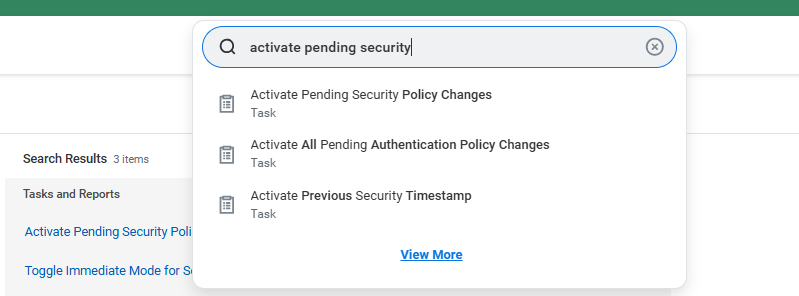
Search for the activation task.
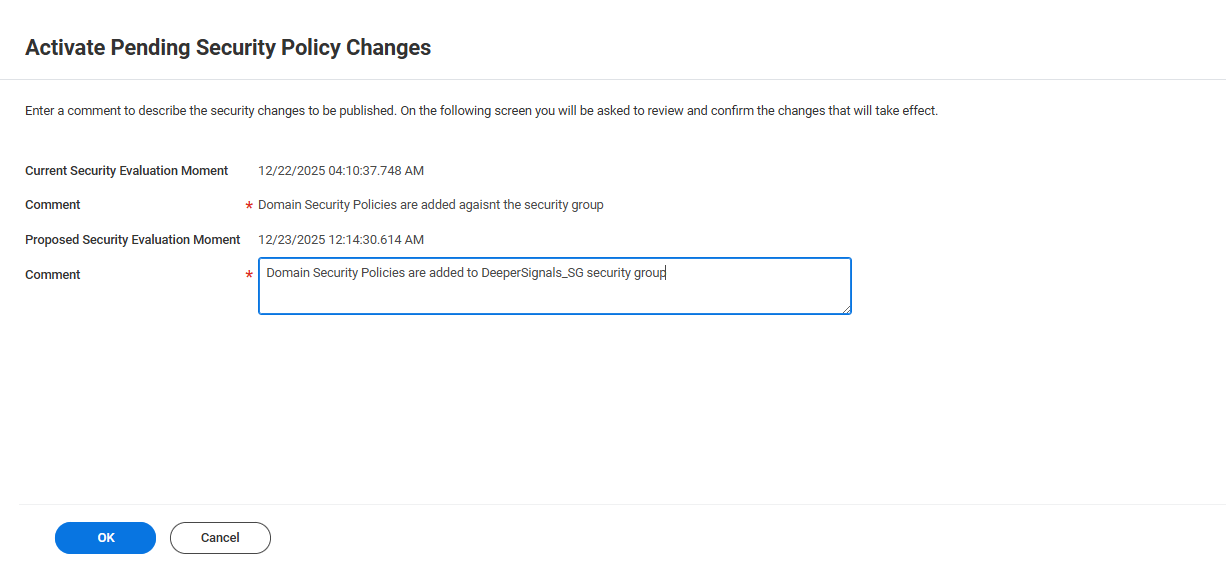
Add a descriptive comment.
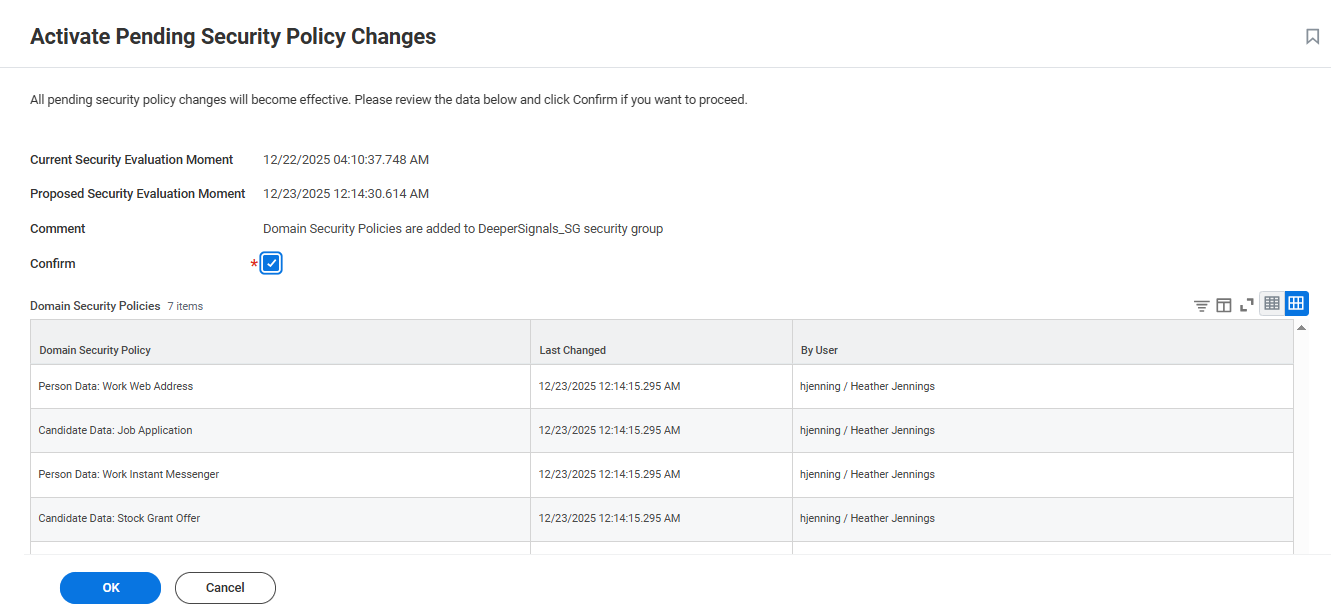
Confirm and submit. The Domain Security Policies list shows the rows being applied.
1.5 Password Expiration Exemption
Although the integration uses OAuth, the Integration System User itself still authenticates with a password to Workday's user store. To prevent the user becoming locked out, run Maintain Password Rules and add DeeperSignals_User to the System Users Exempt from Password Expiration field.

Search for Maintain Password Rules.
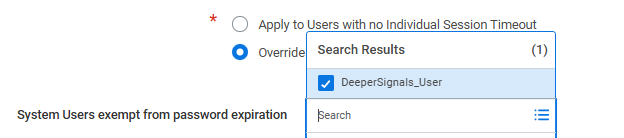
Add DeeperSignals_User to the exempt list.
1.6 OAuth 2.0 — Register API Client
Run Register API Client for Integrations. Configure the client as below:
| Field | Value |
|---|---|
| Client Name | Deeper Signals |
| Client Grant Type | Authorization Code Grant |
| Access Token Type | Bearer |
| Non-Expiring Refresh Tokens | Checked. |
| Refresh Token Timeout (in days) | 0 |
| Include Workday Owned Scope | Checked. |
| Scope (Functional Areas) | Contact Information Jobs & Positions Personal Data HRIS only Pre-Hire Process Recruiting Staffing HRIS only System Tenant Non-Configurable |
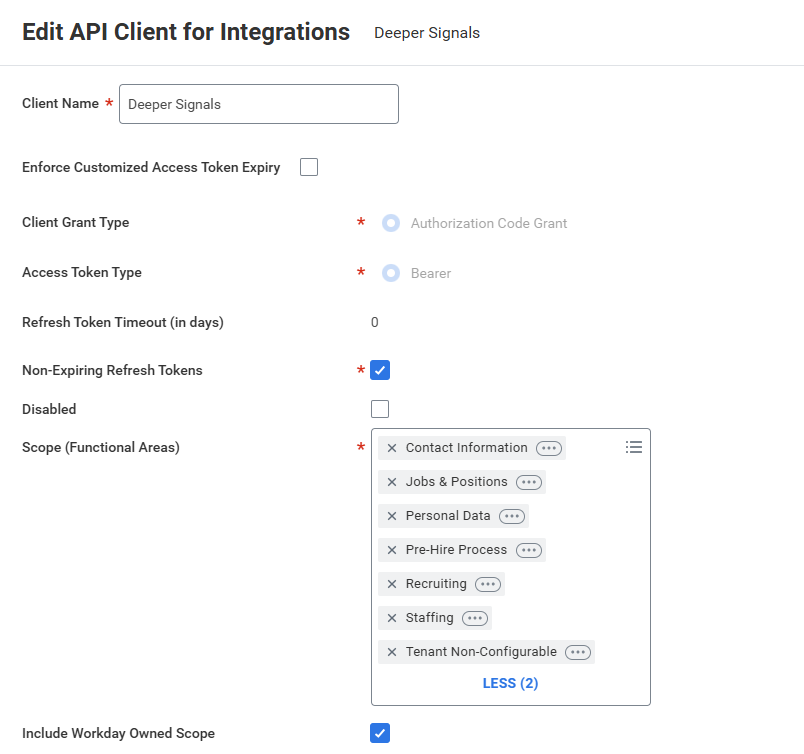
The OAuth client. A combined ATS + HRIS deployment needs all eight scopes; an ATS-only deployment needs the six that are not marked HRIS only.
:::note Which scopes are required, and why
The integration touches three SOAP services and one REST API across both ATS and HRIS surfaces. Each scope below maps to a specific surface; missing one that your deployment uses causes the corresponding endpoint to fail with "The task submitted is not authorized." The Required for column shows which deployments need each scope — an ATS-only deployment can omit Staffing and Personal Data entirely.
| Scope | Required for | Why DS needs it |
|---|---|---|
| Recruiting | ATS + HRIS | Get_Assess_Candidate, Get_Candidates, Assess_Candidate, Put_Candidate_Attachment, Get_Job_Requisitions. Also Get_Organizations, which is called on HRIS deployments only. |
| Jobs & Positions | ATS + HRIS | Read job requisitions and positions referenced by candidates. |
| Pre-Hire Process | ATS + HRIS | Read pre-hire / candidate-stage data on Workday tenants that route data through that area. |
| Tenant Non-Configurable | ATS + HRIS | Required for every external integration to call public web services. |
| Contact Information | ATS + HRIS | Person Data: Work Contact Information — the candidate's email address, and worker emails on HRIS deployments. |
| System | ATS + HRIS | REST /api/customObject/v2/{tenant}/customObjects/{name} for pushing assessment dimension scores. |
| Staffing | HRIS only | Get_Workers, Put_Worker_Document. Not used by an ATS-only deployment. |
| Personal Data | HRIS only | Worker contact information used during HRIS sync (work email, instant messenger, web address). Not used by an ATS-only deployment. |
| ::: |
For reference, the screenshot below — taken from a real tenant — shows the moment the last three scopes (Staffing, Personal Data, System) are added; these are the scopes most often missed when starting from an older Workday integration template. On an ATS-only tenant, only System of those three applies.
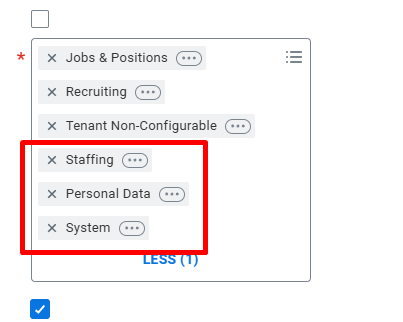
The three scopes most often added late: Staffing, Personal Data, System.
After saving the client, click OK and record the Client ID and Client Secret.
Next, generate a long-lived refresh token. From the API Client's three-dot Related Actions menu, choose API Client → Manage Refresh Tokens for Integrations. Set the Workday Account to DeeperSignals_User and click OK to generate a refresh token. Record the token value.
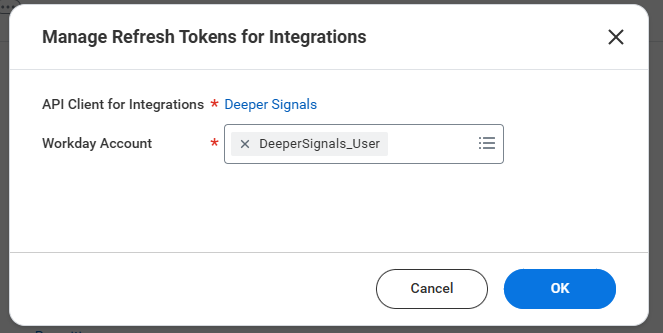
Generate a refresh token bound to the ISU.
Open View API Client on the same client and record all three URLs:
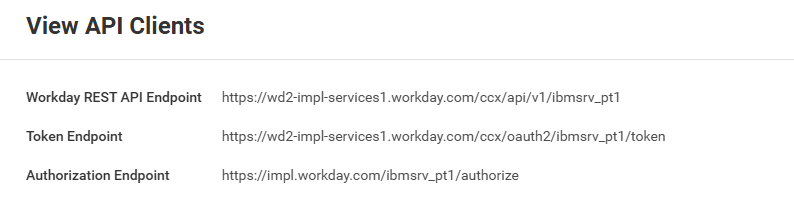
Record the Workday REST API Endpoint, the Token Endpoint, and the Authorization Endpoint.
1.7 Public Web Service endpoints
Deeper Signals reaches Workday's SOAP services on the SOAP bind addresses published per service. Run Public Web Services in Workday, find each service in the table, choose Web Service → View WSDL, and copy the bind address from the bottom of the WSDL XML.
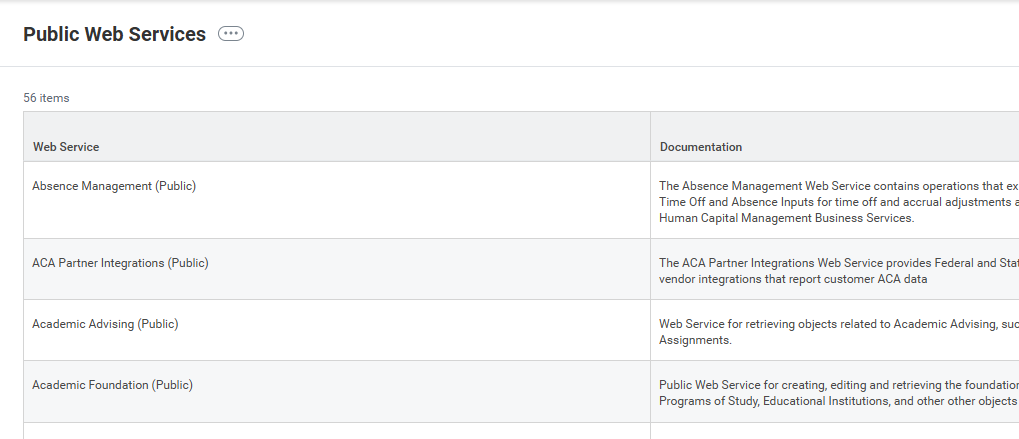
Search for Public Web Services in Workday.
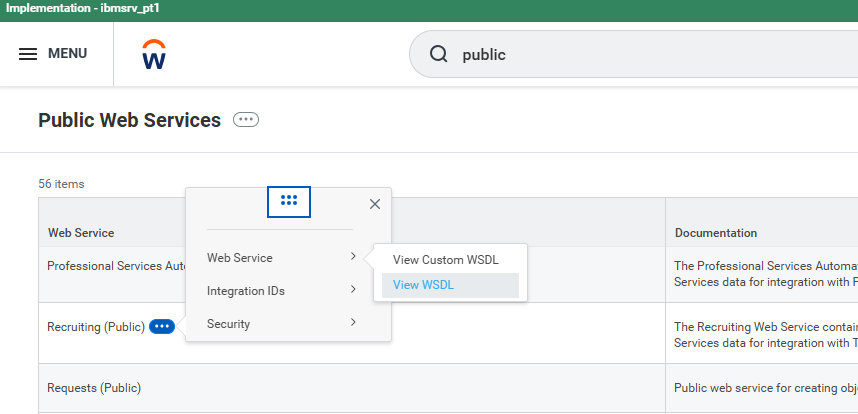
From the row's three-dot menu, open Web Service → View WSDL.
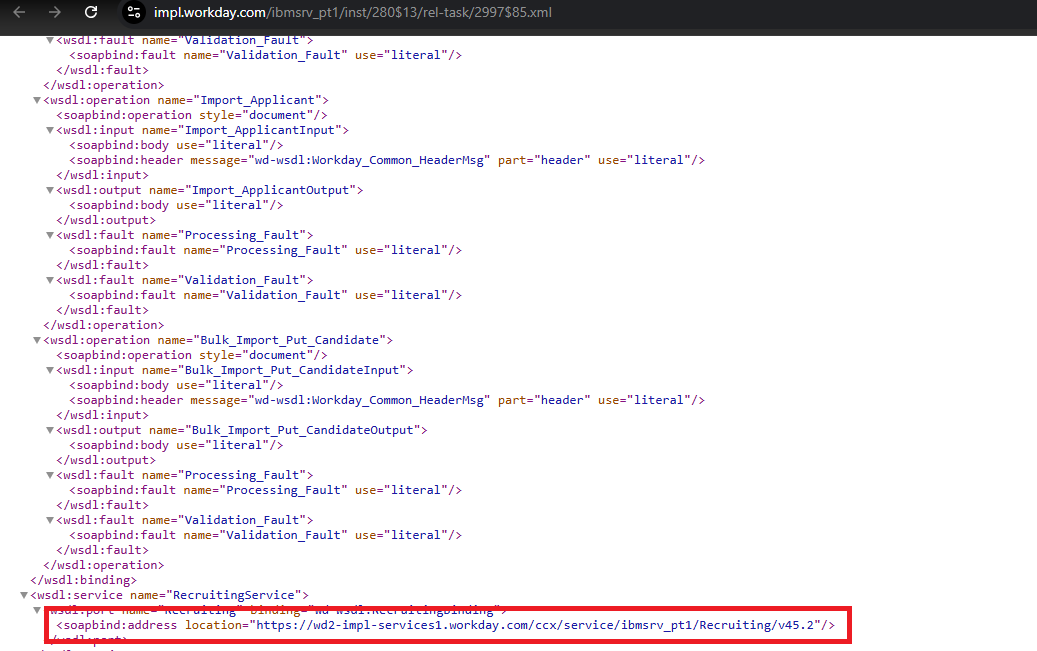
Copy the soapbind:address location at the bottom of the WSDL.
Capture the bind address for the services below:
| Service | Required when |
|---|---|
Recruiting/v45.2 | ATS integration is enabled. |
Staffing/v45.2 | HRIS integration is enabled (used to upload assessment PDFs to the worker). |
Human_Resources/v45.2 | HRIS integration is enabled (used to read workers). |