Configuring the integration on the Deeper Signals side
This part is the counterpart to Part 4. It walks through the Deeper Signals admin UI where you enter the Workday credentials, custom-object aliases, and field mappings you collected in Parts 1--3. The configuration is fully self-service — you paste values directly into the screens below; no credentials need to be shared with Deeper Signals.
:::info Who can do this
You need a Deeper Signals account with the admin role on the tenant. The screens below live under Settings → Integrations. :::
5.1 Where the integrations live
Sign in to the Deeper Signals admin app and choose Settings from the left navigation, then Integrations. The page splits into two tabs — HRIS and ATS — corresponding to the two surfaces in this guide. Each tab lists the connectors available for your account.
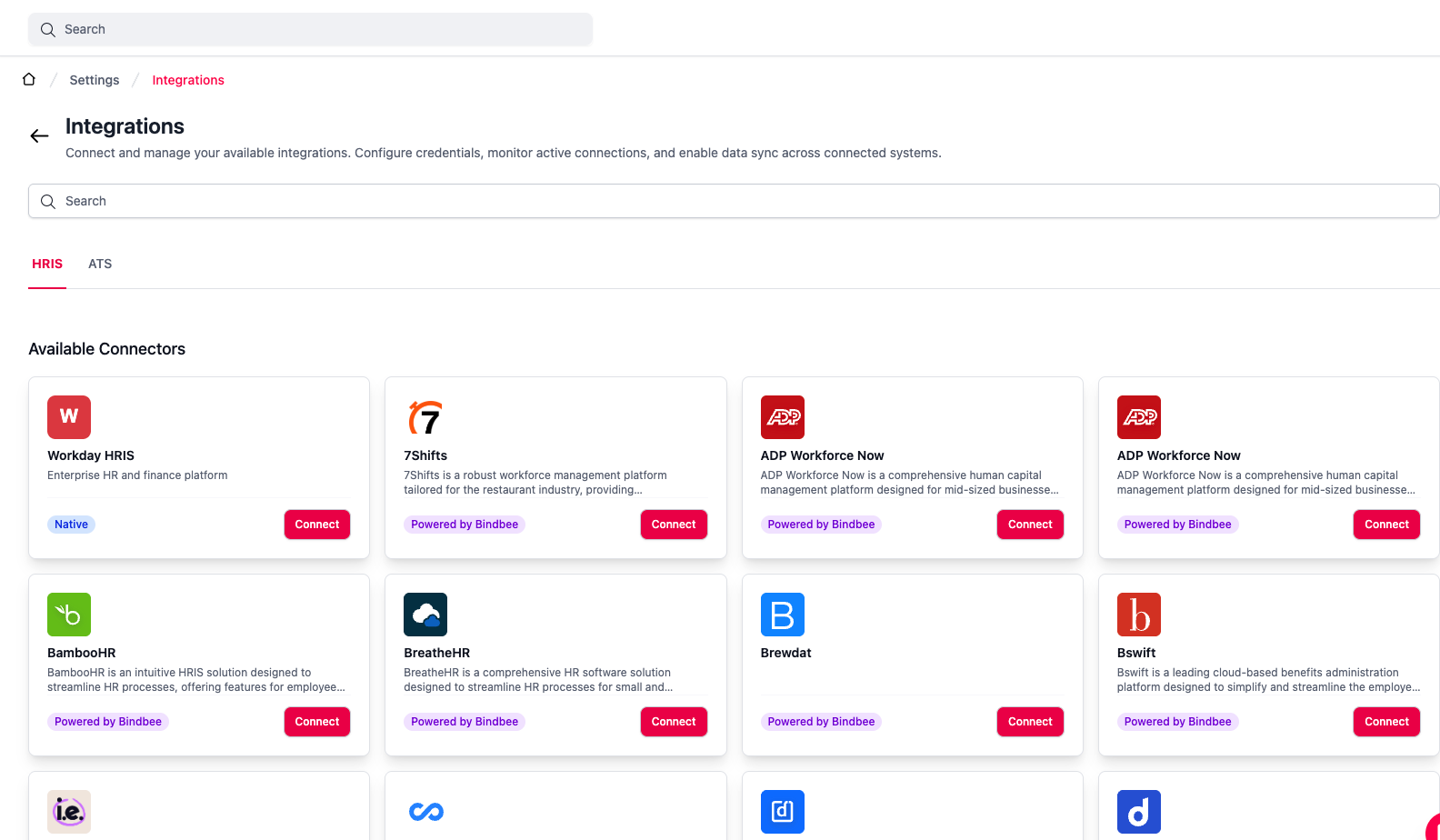
5.1.a — Settings → Integrations with the HRIS tab selected. Workday HRIS appears under Available Connectors.
The ATS tab lists Workday ATS alongside other supported connectors (Greenhouse, Lever, Ashby, Teamtailor). Click Connect on the Workday HRIS or Workday ATS card to open the configuration drawer.
5.2 Creating the Workday HRIS integration
From the HRIS tab, click Connect on the Workday HRIS card. A right-hand drawer slides in titled Connect Workday HRIS. Once saved, the drawer header changes to Manage Workday HRIS on subsequent visits and the connector moves to Active Connector on the landing page.
The drawer is split into accordions; configure them in the order below.
5.2.1 Connection Credentials (required)
Paste the values you collected in the Part 4 checklist.
| Field | What to enter | Source in Part 4 |
|---|---|---|
| Tenant | Your Workday tenant short name (e.g. acme). | Tenant short name |
| Host | Your tenant URL, including https:// (e.g. https://wd5-impl-services1.workday.com). | Workday host |
| Client ID | OAuth client ID from the API Client for Integrations. | OAuth credentials |
| Client Secret | OAuth client secret. The field is masked; existing values are preserved on save if left blank. | OAuth credentials |
| Refresh Token | Non-expiring refresh token. Also masked; leave blank to keep the current value. | OAuth credentials |
| Instance Timezone | The tenant's instance timezone (e.g. Europe/Zagreb, America/Chicago). | Tenant Instance Timezone |
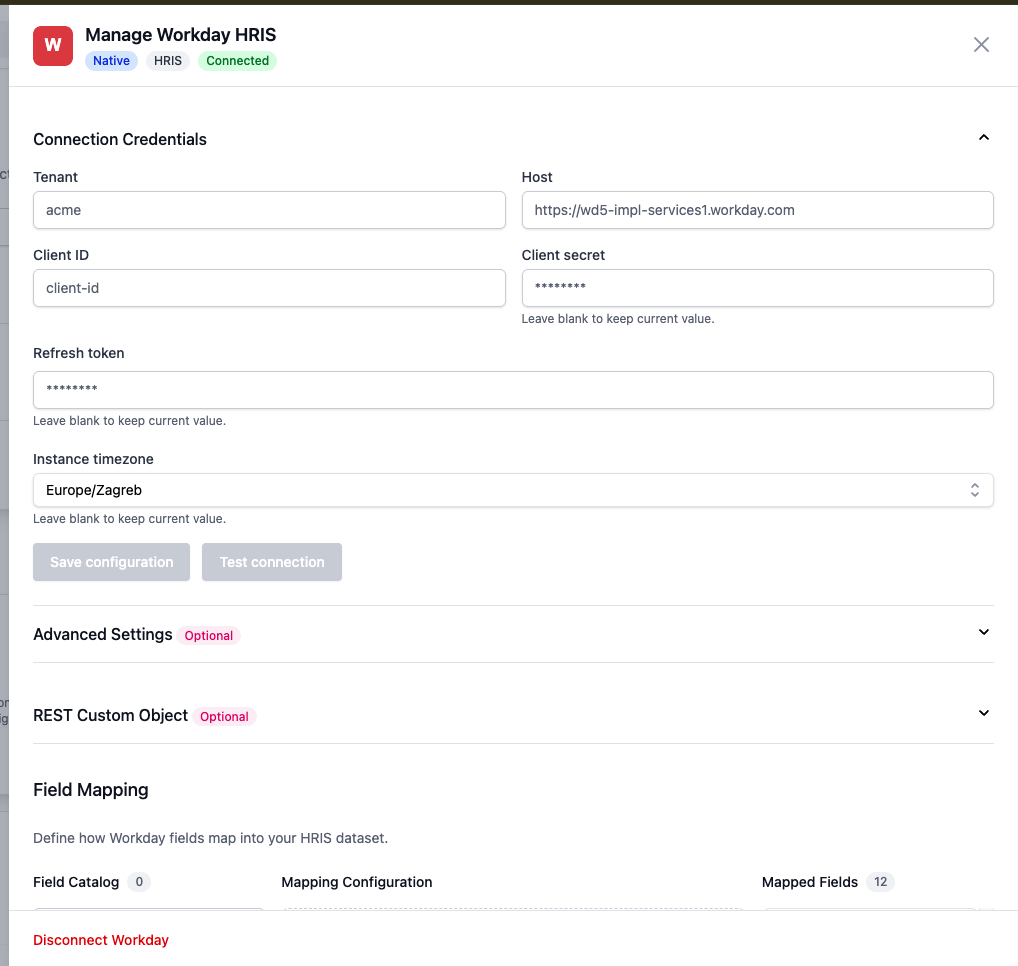
5.2.a — Connection Credentials. Once all six fields are filled, the Save configuration and Test connection buttons activate.
Click Test connection to verify the credentials before saving. A successful test is a prerequisite for the integration to start polling.
:::warning Re-saving credentials
Client Secret and Refresh Token are write-only — they show as masked dots and the helper says "Leave blank to keep current value." Only paste new values when you are intentionally rotating the secret or token. :::
5.2.2 Advanced Settings (optional)
The Version field controls the Workday Web Services version used for SOAP calls. The default is v45.2 and works for the vast majority of tenants. Override only if your tenant runs a different supported version.
5.2.3 REST Custom Object (optional)
This section configures the worker-side write-back: PDF document upload and per-dimension custom-object scores.
Document Upload
- Document Category — the Workday Document Category Reference ID to use when uploading the PDF assessment report to a worker (
Put_Worker_Document). Recommended:ASSESSMENT. Leaving this blank disables PDF upload entirely; the per-dimension REST write still runs. See Part 3.3.
Custom Object Configuration
- Custom Object Name — the Web Service Alias of the worker custom object you created in Part 3.1 (e.g.
workerAssessmentDimensionResult).
Field Mapping
Three fixed Deeper Signals keys on the left, mapped to the Workday field aliases on the right.
| Deeper Signals key (fixed) | Workday field alias (your value) |
|---|---|
score | The integer score field's alias (recommend score). |
dimension_name | The dimension-name field's alias (recommend dimensionName). |
assessment_name | The assessment-name field's alias (recommend assessmentName). |
The labels on the left are not editable; you only enter the Workday side. The names you enter must match exactly the Web Service Aliases set on the worker custom object in Workday.
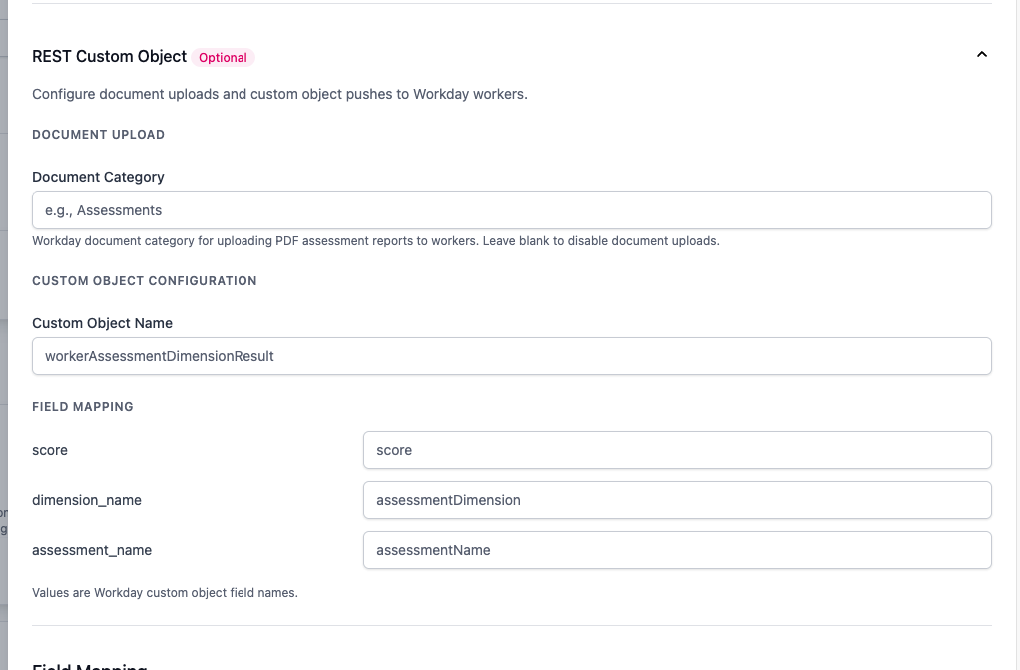
5.2.c — REST Custom Object. Document Category controls PDF upload; the three field-mapping rows control where per-dimension scores land.
5.2.4 Field Mapping (worker directory)
This is the largest section of the drawer. It controls how Workday worker fields are pulled into the Deeper Signals worker dataset on every sync. The page is divided into three columns:
| Column | Purpose |
|---|---|
| Field Catalog | Searchable list of Workday fields available for mapping. Populated by introspecting the connection — only present once the credentials are valid. |
| Mapping Configuration | The editor for whichever field you are currently configuring (target name, type, source path, transform). |
| Mapped Fields | The list of fields you have already mapped. Default mappings ship with a Workday integration include: user, employee_id, worker_wid, full_name, job_title, company, cost_center, hire_date, termination_date, and others. |
Click Edit on any mapped field to open it in the Mapping Configuration column.
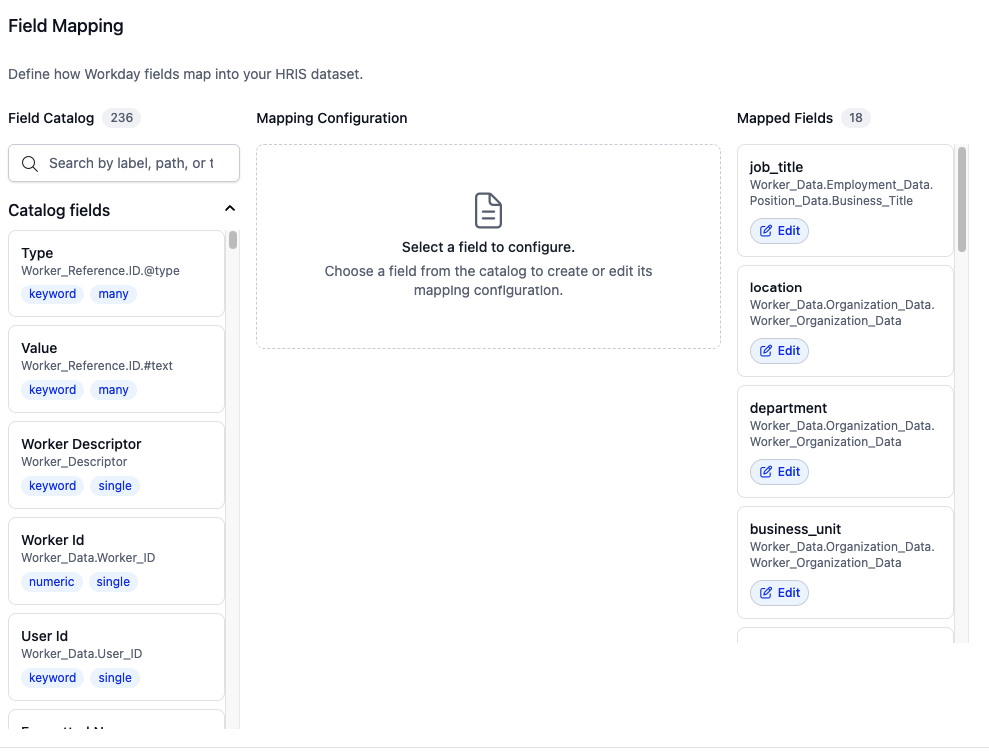
5.2.d — Field Mapping. Three columns: Field Catalog (left), Mapping Configuration (middle), Mapped Fields (right).
Editing a mapping
The Mapping Configuration editor exposes four properties per mapping:
| Property | Meaning |
|---|---|
| Target field name | The DS-side field the Workday data lands in (e.g. user, job_title). |
| Field type | Elasticsearch field type for indexing. Most commonly keyword; use date for hire/termination dates. |
| Source path | Dotted path into the Workday Get_Workers response (e.g. Worker_Data.Personal_Data.Contact_Data.Email_Address_Data). |
| Transform | Optional pipe-chained transforms applied to the raw value. Example: `filter(type=WORK) |
Use Test to preview the mapping against a real worker, Save mapping to add it to the right-hand list, or Remove Mapping to delete it. Cancel discards in-flight edits without saving.
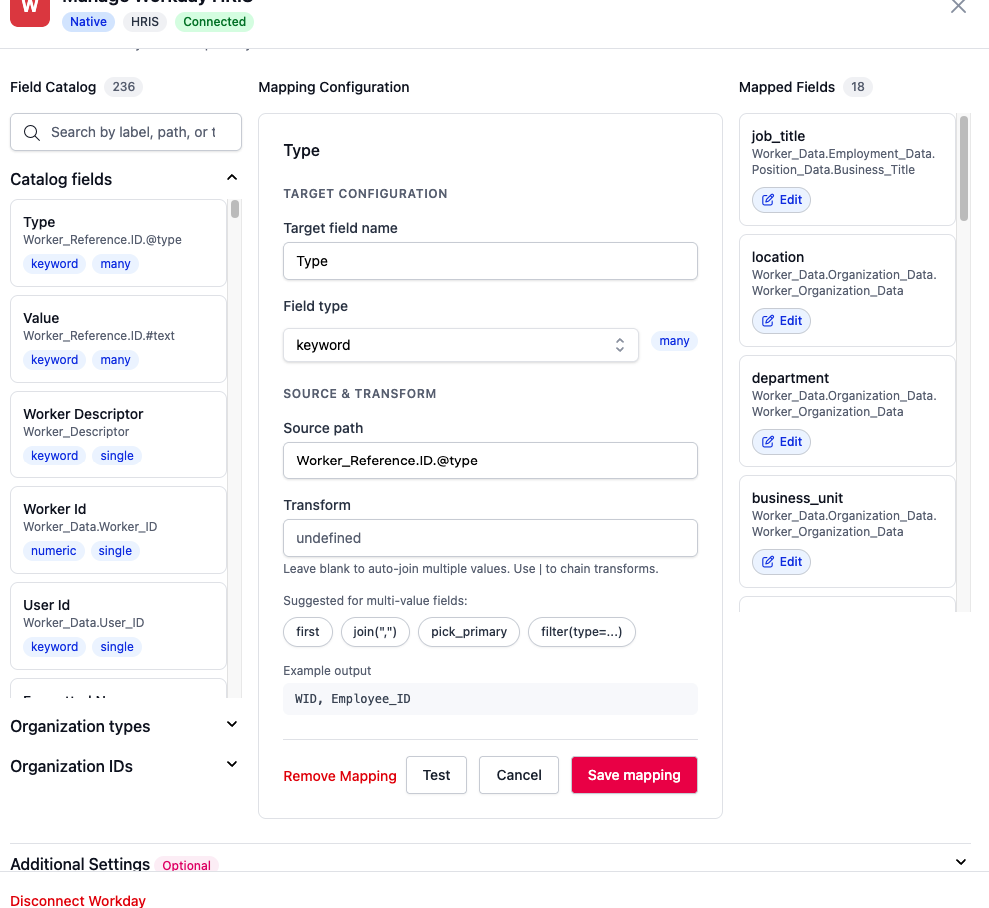
5.2.e — Editing the user field mapping. The Transform field uses pipe-chained operators: filter(type=WORK)|first|Email_Address.
:::info Default mappings will cover most tenants
The Deeper Signals default mapping set covers email, employee ID, name, job title, company, cost center, hire date, and termination date out of the box. Add new fields here only when your team analytics or filtering logic depends on them — for example, mapping location or business_unit to enable group filters in admin views.
:::
5.2.5 Additional Settings (optional)
This section provides operational tools rather than configuration.
| Control | What it does |
|---|---|
| Manual sync (Incremental / Full) | Runs a worker sync immediately. Incremental covers the window since the last successful sync; Full re-pulls every worker. Use Full after adding a new field to the mapping so existing workers get back-filled. |
| Export | Downloads the latest worker dataset as CSV. Useful when validating that the field mapping produces the expected output. |
:::warning Workers without a Workday work email
The Manual sync section shows the warning "If users don't have a Workday work email, a @deepersignals email will be generated as the placeholder." Those users are imported so the manager hierarchy stays intact, but they can't sign in or be invited until a real Work Email is added in Workday and the next sync picks it up. :::
5.2.6 Save and verify
Click Save configuration at the top of the drawer. The connector card on the landing page moves from Available Connectors to Active Connector with a green Connected badge. From this moment, the scheduler picks up the integration on the next 30-minute tick (see Workday API Call & Lifecycle Reference, §3.1).
5.3 Creating the Workday ATS integration
Switch to the ATS tab on the integrations page and click Connect on the Workday ATS card. The first time you do this, a small drawer opens with a Create Integration button that bootstraps the configuration record.
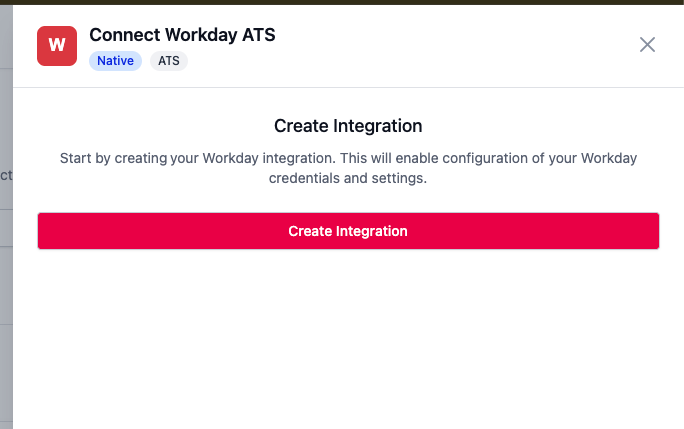
5.3.a — Empty-state drawer for the Workday ATS integration. Click Create Integration to open the full configuration form.
After clicking Create Integration, the drawer expands into the configuration form. The same accordion sections as the HRIS side — but tailored to Recruiting.
5.3.1 Connection Credentials (required)
Identical to the HRIS side: Tenant, Host, Client ID, Client Secret, Refresh Token, and Instance Timezone. If you've already configured the HRIS side, the same OAuth credentials apply here — paste them again. The integrations are independent records but share a single API Client in Workday.
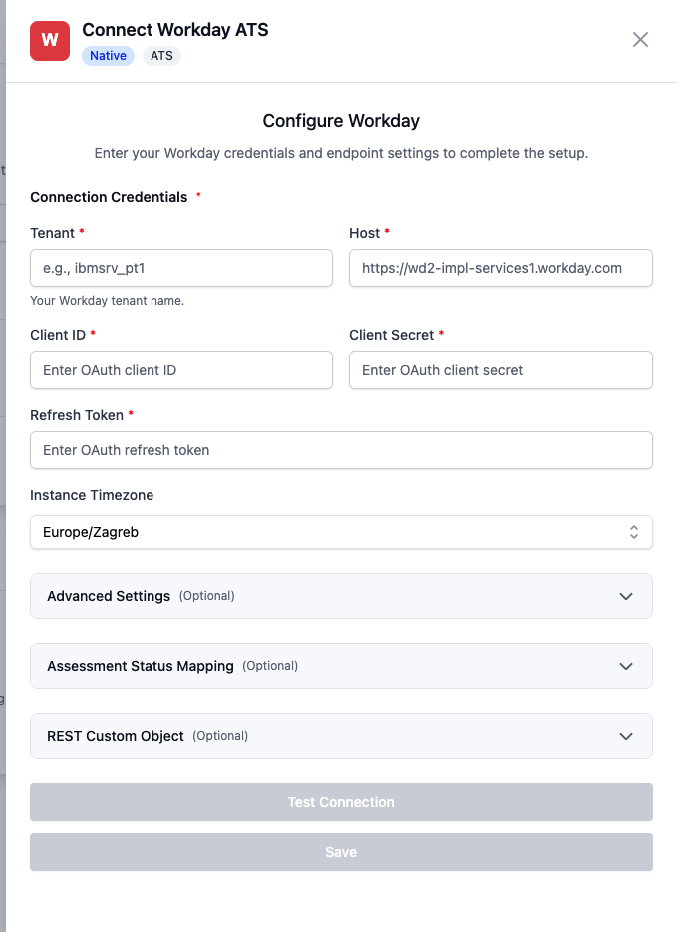
5.3.b — ATS Connection Credentials. The placeholders show example formats for Tenant and Host.
5.3.2 Advanced Settings (optional)
Same single Version field. Default for ATS is v45.2 (the Workday Recruiting Web Services version). Update only if your tenant requires a different version.
5.3.3 Assessment Status Mapping (optional)
Maps Deeper Signals assessment lifecycle states onto the Reference IDs of the Workday Recruiting Assessment Statuses you created in Part 2.1.
| Deeper Signals state | Workday status Reference ID (recommended) |
|---|---|
Invite sent (UNUSED) | Deepersignals_Invite_Sent |
Signed up (SIGNED_UP) | Deepersignals_Signed_Up |
In progress (IN_PROGRESS) | Deepersignals_In_progress |
Completed (COMPLETED) | Deepersignals_Completed |
Deeper Signals writes the assessment status to Workday when the candidate completes the campaign; the earlier states are available for tenants that track them through other means.
If you used different Reference IDs in Part 2.1, enter your tenant's actual values here.
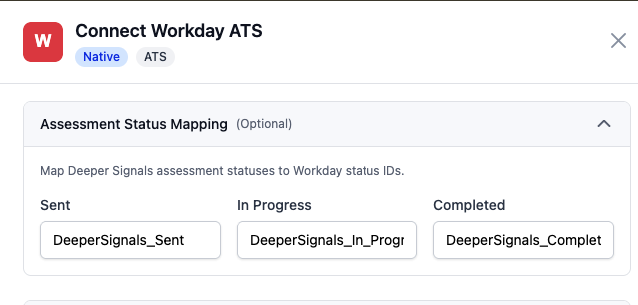
5.3.c — Assessment Status Mapping. Three text inputs corresponding to the three lifecycle states.
5.3.4 REST Custom Object (optional)
Same shape as the HRIS side, but writes to the Job Application custom object created in Part 2.3 instead of the worker one.
| Field | What to enter |
|---|---|
| Custom Object Name | The Web Service Alias of the candidate custom object (e.g. candidateAssessmentDimensionResult). |
assessment_name → ... | Workday alias for the assessment-name field. |
dimension_name → ... | Workday alias for the dimension-name field. |
score → ... | Workday alias for the score field. |
Helper text reminds you: "Keys are fixed (assessment_name, dimension_name, score). Enter Workday field names on the right." The Deeper Signals keys cannot be renamed; only the right-hand Workday aliases are configurable.
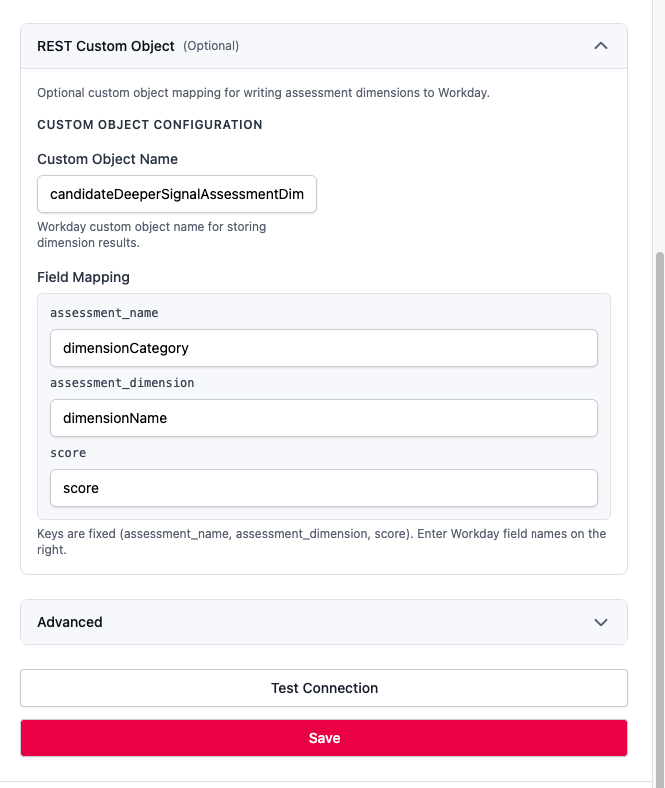
5.3.d — ATS REST Custom Object. Same three fixed keys as the worker custom object, with separate Workday aliases.
5.3.5 Save and verify
Click Test Connection to validate the credentials, then Save. The connector moves to Active Connector with a Connected badge. From this point the assess-candidate poll runs every 10 minutes and the hired-candidate poll every 15 minutes (see Workday API Call & Lifecycle Reference, §2.1 and §2.3).
5.4 Testing and going live
Once both integrations are saved and showing Connected, run the following smoke tests before announcing the integration to recruiters and managers.
- HRIS: trigger a manual Incremental sync from §5.2.5 and confirm in the Deeper Signals Users view that recently changed workers appear.
- HRIS: use the Export button to download the worker CSV and spot-check that key fields (email, manager, job title) carry the expected values.
- ATS: in Workday, move a test candidate into a Deeper Signals assessment step. Within ~10 minutes the candidate should receive an invitation email (the Workday assessment status is written at completion, not at invitation).
- ATS: complete the assessment as the test candidate. Verify on the Job Application that the status moves to Deepersignals_Completed, the PDF is attached, and the per-dimension custom-object rows are populated.
- Hired path (both): hire the test candidate in Workday. Verify within ~15 minutes that the worker custom object on their newly created worker record has the same dimension scores and that the PDF is attached under your configured Document Category.
:::note Reminder
The worker PDF upload is gated by the Document Category field in §5.2.3. If it's blank, only the per-dimension REST write happens — the SOAP Put_Worker_Document attachment is skipped. Set this value before going live unless you specifically want to omit PDF reports from the worker profile.
:::